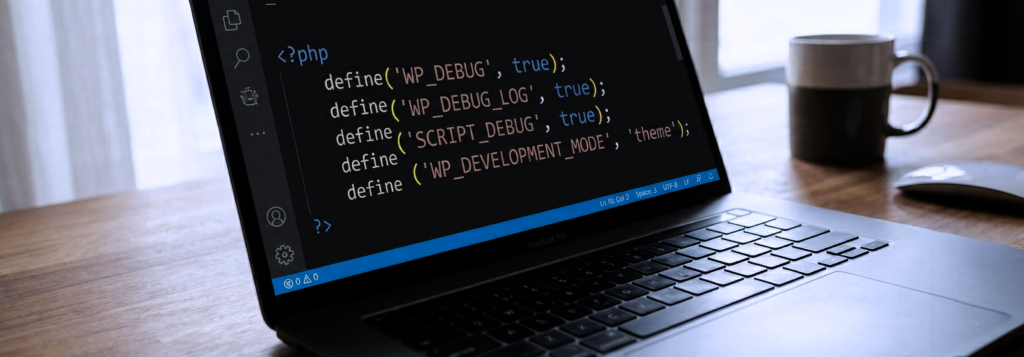

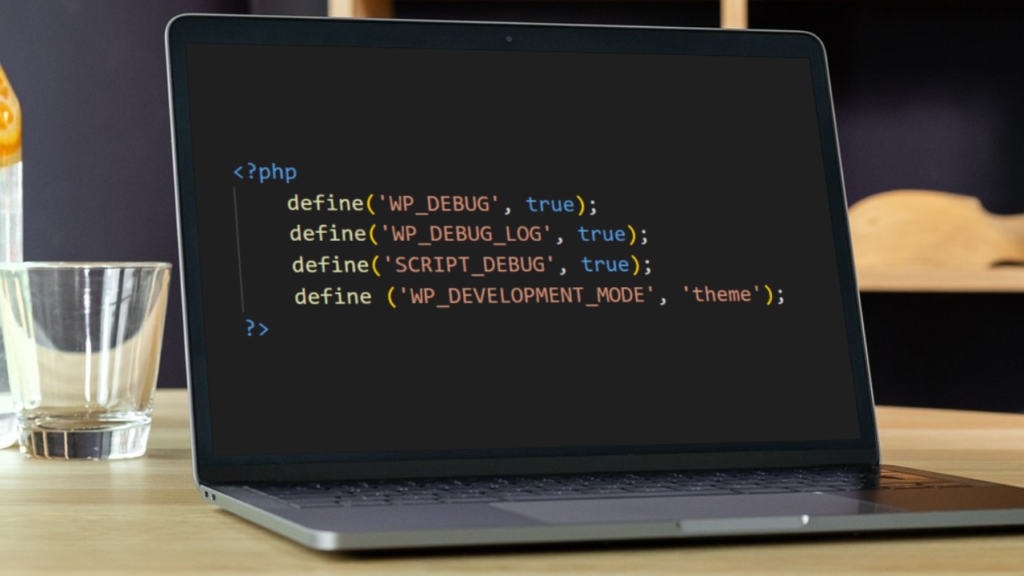
When developing WordPress themes or plugins, proper debugging configuration is crucial. Here’s what each debugging constant does and why you need them.
WP_DEBUG
define('WP_DEBUG', true);
This is the master switch for WordPress debugging. When enabled, it displays PHP errors, notices, and warnings on your site. This helps you catch deprecated functions, undefined variables, and other issues that might otherwise go unnoticed. Always enable this during development, but never on production sites as it exposes sensitive information to visitors.
WP_DEBUG_LOG
define('WP_DEBUG_LOG', true);
Instead of displaying errors on screen, this writes them to a debug.log file in your wp-content directory. This is invaluable for tracking intermittent issues or errors that occur during AJAX requests. You can monitor the log in real-time and review errors without disrupting your development workflow.
SCRIPT_DEBUG
define('SCRIPT_DEBUG', true);
By default, WordPress loads minified versions of core CSS and JavaScript files. Enabling this forces WordPress to use the unminified, development versions instead. This makes debugging JavaScript issues much easier since you can read the actual code and set breakpoints in browser developer tools without dealing with compressed, single-line files.
WP_DEVELOPMENT_MODE
define('WP_DEVELOPMENT_MODE', 'theme');
Introduced in WordPress 6.3, this newer constant provides more targeted debugging. Setting it to 'theme' enables specific development features for theme work, including disabling caching for theme files. Other options include 'plugin', 'core', or 'all'. This allows you to focus debugging on the specific area you’re working on without the overhead of full debugging everywhere.
Putting It All Together
Add these to your wp-config.php file during development:
define('WP_DEBUG', true);
define('WP_DEBUG_LOG', true);
define('SCRIPT_DEBUG', true);
define('WP_DEVELOPMENT_MODE', 'theme');
This configuration gives you comprehensive error reporting, logs issues for review, provides readable source files, and optimizes the environment for theme development. Just remember to disable or remove these settings before deploying to production.